Use the Anki Cozmo robot with a GUI. Uses Python with TkInter.
Welcome to Cozmo Commander. I hope you will find this program useful for learning and understanding Cozmo and the SDK.
I myself work on this program for exactly the same reason, I learn while developing it.
At the beginning I only wanted to find out how the world coordinate system works.
By and by, the program got bigger and it is still growing. The "todo" grows faster that the "done" list.
Have fun using it!
I am new to Cozmo, new to GUI programming and still new to Python.
So this project is definitely not programmed in the most efficient or most elegant way.
CozmoCommander opens a Graphical User Interface (GUI) with optional viewers provided by the Cozmo SDK.
You can control the Cozmo robot and its interaction with lightcubes and other objects.
You can open a 2D map where the position of the robot is tracked and other objects are shown.
You can create virtual objects in the 2D map and send Cozmo to a location by doubleclicking on the map.
I thank Anki for providing the Cozmo, the SDK and the very useful tutorials.
I thank Grinning Hermit for providing the Cozmo Explorer Tool which was a great source of inspiration.
I thank all who provide great tutorials on Python and TkInter
Special thanks to Lucas Waelti for providing the self_docking algorithm
Licensed under the Apache License, Version 2.0 (the "License");
you may not use this file except in compliance with the License.
You may obtain a copy of the License in the file LICENSE.txt at
http://www.apache.org/licenses/LICENSE-2.0
Unless required by applicable law or agreed to in writing, software
distributed under the License is distributed on an "AS IS" BASIS,
WITHOUT WARRANTIES OR CONDITIONS OF ANY KIND, either express or implied.
See the License for the specific language governing permissions and
limitations under the License.
This applies especially but not limited to damages of the robot
and damages or injuries caused by the robot.
"Explorer" would have been a more apt name as I explore Cozmo's abilities while developing the program, but this name was already taken.
"Commander" is not so bad as you can give commands to Cozmo. And this name is an hommage at the once famous Norton Commander, long before Windows came up. It was a "graphical" file manager. Norton Commander was ported to Windows by the Swiss man Christian Ghisler. Originally he called it Windows Commander, but for some copyright reasons he changed it to Total Commander. There are several ports to Linux. When you want that retro feeling, try Midnight Commander. Total Commander is still my favorite and, yes, it runs under Wine. Forget Microsoft's Explorer, forget all other graphical file managers, Total Commander is it.
Now, back to Cozmo and CozmoCommander:
Refer to the SDK documentation for setting up your device https://developer.anki.com/blog/learn/tutorial/getting-started-with-the-cozmo-sdk/
From the command line under Windows, enter
python [path to CozmoCommander\]CozmoCommander.py [--arguments]
Under Linux:
python3 [path to CozmoCommander/]CozmoCommander.py [--arguments]
or
<path to CozmoCommander>/CozmoCommander.py [--arguments]
(The path is mandatory. If CozmoCommander is on your present working directory, start it with ./CozmoCommander.py)
macOS / OS X .... I don't know.
optional arguments:
-h, --help show this help message and exit
--viewer VIEWER 0 = no viewer (default), 1 = Camera, 2 = 3D, 4 = 2D map,
combinations are possible like 5=Camera+2Dmap
--dfac DFAC 1.. disconnect from all cubes. Save cube batteries.
--docc DOCC 1 (default) ...drive off charger contacts, 0 ... stay on charger contacts
--tap TAP 1 (default) ...enable tapping cubes, 0 ...disable tapping cubes
--debug DEBUG enable debug messages on console. 0 (default) ... no debug
messages, greater number = more messages
CozmoCommander should start without sending error messages to the console,
the GUI should appear
and Cozmo should move a few millimeters forward, off the charger contacts (unless you have entered the option --docc=0).

First you will notice four buttons called "Forward", "Backward", "Left" and "Right".
"Forward" and "Backward" move Cozmo in a (more or less) straight line, "Left" and "Right" make him turn in place.
You can also use the cursor keys to move Cozmo.
If you click a button to start another movement while Cozmo is still busy with a movement,an error message will be printed on the terminal window and Cozmo will not start the new movement. Simply try again.
Below these four buttons there is a selection for the method which is used to drive forward or backward.The distance, speed and angle by which Cozmo is moved can be entered in the entry fields below.
Note that the entry for speed is disabled when you select the "go to pose" method, as the speed is not taken into account when using this method.
You may enter whatever values you like, even negative values. See what happens.
Below the motion buttons there are sliders to control the head and the lift.
Adjust the sliders and click the buttons above the sliders to move head or lift.
When you move the sliders too fast, head and lift cannot follow. Therefore you need the buttons.
Below the sliders there are three buttons:
Note: When Cozmo pops a wheelie during freeplay behaviors the coordinates are set to 0,0,0 and from then on,
coordinates are offset by the values they had before.
The same happens whenever you move Cozmo by hand.
Next there is a button "Go to/from Charger".
When Cozmo is on the charger (or "dock"), he will move forward.
Otherwise, Cozmo will attempt to go to the charger and back up onto it.
You should leave the charger connected to the power source, so Cozmo con detect whether he is on the charger contacts.
Backing up to the charger may take a few attempts and may be successful or not.
Thanks to Lucas Waelti for providing the code to backup onto the charger.
On the bottom of the Motion Frame there is a status bar which shows the current robot coordinates X,Y,Z in mm and rotation angle in degrees.
The lightcubes show red or green LEDs indicating whether they are visible to the robot (green) or not (red).
Lightcube 1 shows 1 LED, lightcube 2 shows 2 LEDs and lightcube 3 shows 3 LEDs.
The selected cube (see below) shows an additional blue light.
Note that it takes roughly one second until the LEDs on the cubes are updated.
On the Cube frame there are three buttons, indicating the three cubes.
Note that the Id's of the cubes are not necessarily consecuteve.
The buttons turn red or green to indicate whether a cube is visible to the robot.
Click one of these buttons to select a cube for the following actions.
Cubes can also be selected by pressing the keys F1, F2 and F3 or by tapping the cube.
Tapping cubes might cause the program to hang, therefore this feature can be disabled with the command line option --tap=0.
You may select a cube which is not visible. In this case, Cozmo will assume that the cube is still in its last known position.
When one of the buttons is labelled "CubeNone", see if it is present and try changing its battery.
Buttons for actions are:
The last button is labelled "disconnect from all cubes". Click it to save the cube's batteries.
After clicking it, its label turnes to "connect to all cubes".
It will take a few seconds until the cubes are connected again.
Dicconnected cubes can still be seen by the robot and their coordinates are updated.
The cubes can also be disconnected automatially at startup by giving the command line argument --dfac=1.
In this case, they cannot be re-connected.
On the bottom of the Cube frame, the coordinates (X,Y,Z in mm and rotation angle in degrees) and the battery status of the selected cube are displayed.
When the coordinates of a cube are 0,0,0, then the cube has not yet been seen.
On program start, the battery status is "Unknown" until a valid reading is received.
Besides a status bar on the bottom of the faces frame, it is not yet implemented.
A menu lets you choose an animation which is played immediately after selecting it. The adjacent button "repeat" will play the previously selected animation again.
A text element lets you enter a text which Cozmo will say when you click the "say" button.
The status line shows the battery voltage and whether Cozmo is charging. The battery voltage is expressed as absolute voltage and as a percentage.
This percentage is still experimental, you might see values exceeding the 0..100% range.
It also indicates when Cozmo has detected a cliff or is picked up (which seeem to be redundant but it is still displayed)
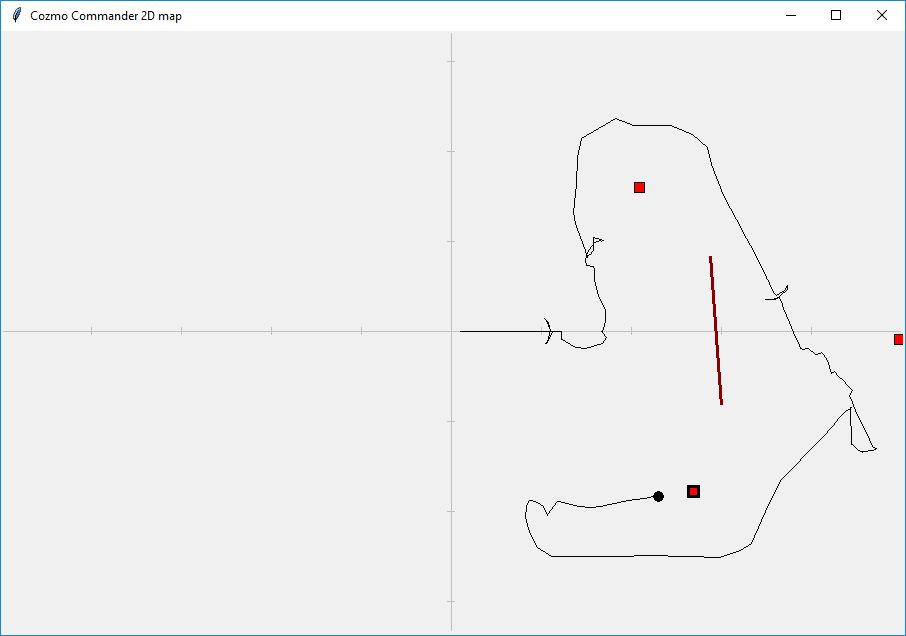
When you click the "map" button in the "motion" frame, a separate window is opened.
The map shows coordinate axes with ticks every 100 mm.
Cozmo's location is shown as an arc (like a pie slice), roughly representing the viewing angle of the camera. When Cozmo moves, the arc moves and its motion is traced with a line.
A double-click on the map sends Cozmo to the spot where you clicked.
The cubes are shown as little squares (they are not rotated to reflect the rotation angle of the cubes).
The selected cube has a wider border, and the cubes are filled red or green according whether they are visible or not.
Clicking and dragging with the left mouse button creates a "custom object" which is shaped like a wall and which Cozmo will avoid when calculating paths.